A Brother printer test page helps you check text sharpness, color coverage, grayscale, and visible printing defects before starting a larger print job.
Use a downloadable PDF to compare everyday output, or run a built-in Brother test for model-specific checks. Choose a color page for a color-capable printer and a black-and-white page for a monochrome model.
The right test can make troubleshooting more focused. However, a printed pattern does not automatically identify the defective component or guarantee accurate color reproduction.
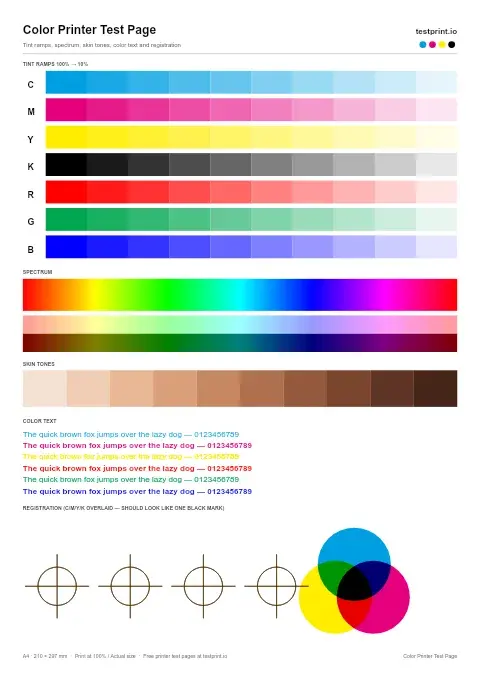
Color Printer Test Page
This printer color test page checks color blocks for faded colors, wrong tones, contamination, or poor saturation. Best for finding color problems before printing photos, graphics, or important documents.
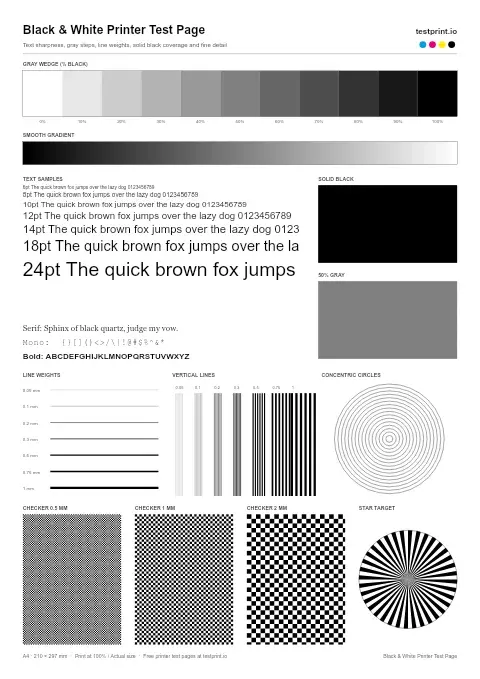
Black and White Test Page
Use this printer test page black-and-white pattern to check black text sharpness/quality, gray areas, streaks, horizontal banding, and weak toner or ink coverage. Best for standard office documents, black-only printers, and basic print-quality checks.
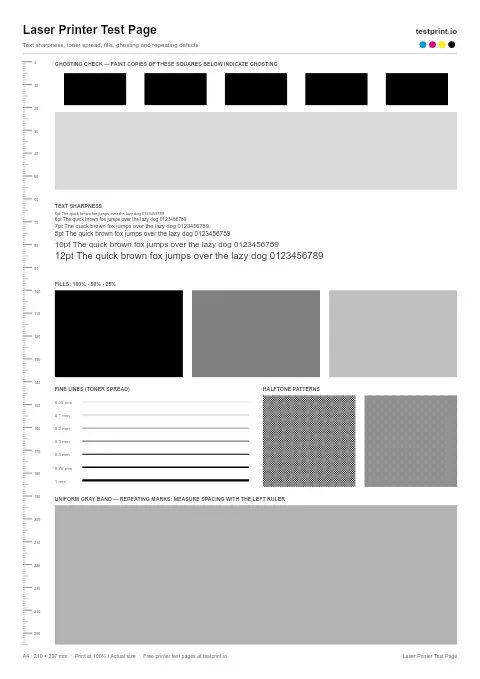
Laser Printer Test Page
Use this when laser prints look soft, smudged, or uneven to check text sharpness and toner spread.
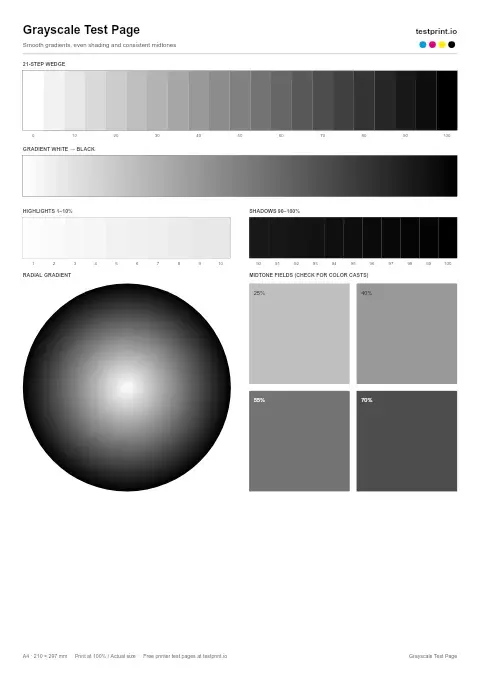
Grayscale Test Page
Prints shades from black to light gray to check smooth gradients, even shading, and consistent midtones. Best for checking grayscale photos, laser output, and inkjet shading.
What Is a Brother Printer Test Page?
A Brother printer test page is a document or internal report used to examine printing performance. Depending on the page, it may contain text samples, solid blocks, gradients, and fine lines.
For an inkjet, Brother's Print Quality Check Sheet helps investigate missing or streaked output. Laser and LED printers use different diagnostic and maintenance procedures.
A general PDF is useful for comparing visible results. It does not measure cartridge levels, test every nozzle individually, or replace the printer's built-in diagnostics.
Which Brother Test Should You Use?
| Test | Main purpose |
|---|---|
| Downloadable color PDF | Compare color coverage, gradients, and text |
| Black-and-white test page | Examine black text, grayscale, and uniformity |
| Brother inkjet Print Quality Check Sheet | Check the diagnostic patterns for ink-output problems |
| Built-in laser or LED test print | Examine printer-generated output |
| Configuration or settings report | Review the information provided by that model's report |
| Windows test page | Check printing through Windows |
A configuration report and a print-quality test are not interchangeable. Their content depends on the model.
When to Print a Brother Test Page
Print a test when:
- Documents show missing text, pale areas, streaks, or smears.
- You have installed replacement ink or toner.
- You have changed paper, driver settings, or print quality.
- You have completed supported cleaning, alignment, or calibration.
- You want to check output before printing a large batch.
- You are comparing a problem document with another file.
Save the first print and use the same settings for the next comparison. Changing several settings at once makes it harder to identify what helped.
How to Print the Brother Test Page PDF
Step 1: Open the Test File
Use the page's print or download option. Open the PDF in a browser or PDF reader.
Step 2: Select Your Printer
Press Ctrl + P on Windows or Command + P on Mac. Select your Brother printer, not a PDF-saving destination.
If it is missing, check the power, the connection, and the installed printer setup.
Step 3: Review the Settings
Match the paper size and paper type to the loaded media. Start with normal quality.
For a color printer, enable color rather than grayscale. For a monochrome model, use a black-and-white test.
Turn off economy or toner-saving options when you want a baseline quality comparison.
Step 4: Check Scaling
Use actual size or 100% scale for dimension-sensitive patterns. If the file exceeds the printable area, choose a suitable layout or scaling setting to prevent clipping.
Step 5: Print and Inspect
Print one copy. Let ink dry, where applicable, then inspect the page under neutral lighting.
How to Print a Brother Inkjet Quality Check Sheet
Menu paths vary. Use the instructions for your full model number rather than a generic sequence.
Example: Brother MFC-J995DW
Brother's manual gives this path:
Settings → Maintenance → Improve Print Quality → Check Print Quality
Press Start, then examine the four color blocks. Respond to the touchscreen prompts according to the printed result. If cleaning is required, follow the guided procedure and print the check sheet again.
Source: Brother MFC-J995DW print-quality instructions.
This procedure should not be assumed to apply unchanged to every MFC-J, DCP-J, or INKvestment model.
How to Print a Brother Laser Test Page
Laser and LED printers do not use inkjet nozzles. Their test prints help assess toner-based output.
Example: Brother HL-L2350DW
In Brother's cited guide:
- Use the arrow buttons to select Printer.
- Press OK.
- Select Test Print.
- Press Go.
Source: Brother HL-L2350DW test-print instructions.
Other models can include an additional submenu or different controls. Consult the matching regional manual.
Brother Printer Compatibility
| Model category | Suitable checks |
|---|---|
| MFC-J and DCP-J inkjets | Color output and supported print-quality checks |
| INKvestment inkjets | Quality patterns plus model-specific ink and maintenance information |
| Monochrome HL-L, DCP-L, and MFC-L models | Black text, grayscale, and toner coverage |
| Color laser or LED models | Color output, registration, and supported calibration |
DCP and MFC identify product families; they do not by themselves establish the print mechanism or color capability.
Use a downloadable PDF where your printer setup supports normal PDF printing and the selected paper. Avoid assuming every Brother model has the same menus, media sizes, or diagnostic functions.
How to Read a Brother Test Page
Solid Blocks
Look for white gaps, pale regions, and uneven coverage. These identify a symptom, not a definite cause.
For inkjets, compare the built-in quality pattern. For toner-based printers, use the model's troubleshooting examples.
Gradients
Look for smooth transitions and unwanted stripes. Banding on a general PDF does not prove a specific nozzle is blocked, particularly on a laser printer.
Text and Fine Lines
Check for broken characters, blurred edges, doubling, or shadows. These can warrant checking media, settings, alignment, or components.
A shadow beside text does not by itself prove that the drum needs replacing.
Color Edges
Colored fringes around text or shapes can justify checking registration on supported color models. Registration and color-density calibration perform different functions.
Source: Brother color-output troubleshooting.
Brother Printer Test Page Troubleshooting
Horizontal White Lines on an Inkjet
Print the built-in quality sheet. Missing sections can indicate a nozzle issue; follow the guided cleaning instructions.
Do not apply an assumed five-minute wait or a universal “Deep Cleaning” sequence. Cleaning options and limits depend on the model.
Brother warns against touching the printhead, which can cause damage.
Light or Uneven Laser Output
Check paper selection, quality settings, toner-saving mode, and displayed consumable messages.
Follow the model's procedure if it recommends checking or redistributing toner. Do not assume this will recover a specific number of pages or that pale output always means low toner.
Incorrect Colors on a Color Laser or LED Printer
Check settings and follow the model's calibration and registration guidance. Brother's troubleshooting for supported models also includes disabling Toner Save and identifying the affected color before replacing supplies.
Do not replace whichever cartridge is closest to empty solely because the page has a color cast.
Blank Pages
Verify that the file contains visible content and the correct printer is selected. Check supply installation and any displayed errors.
Compare a printer-generated test with the downloaded file. Follow inkjet guidance for an inkjet and toner-based guidance for a laser or LED model.
The Built-In Test Prints, but Documents Do Not
An internal test does not check the entire computer-to-printer path.
Review the selected printer, connection, queue, driver, and application. Try another file before reinstalling software.
If a downloaded PDF prints successfully, compare the failing document and app settings. A downloaded test PDF still uses the normal printing system.
How to Print a Brother Test Page From Windows 11
- Open Settings → Bluetooth & devices → Printers & scanners.
- Select your Brother printer.
- Open Printer properties.
- On the General tab, select Print Test Page.
Source: Microsoft printing troubleshooting.
For stuck Windows jobs, review the queue. Microsoft's troubleshooting also includes restarting the Print Spooler service when appropriate.
How to Print a Brother Test Page From a Mac
Open the PDF in Preview, choose File → Print, select your Brother printer, and review the settings.
For a built-in diagnostic, use the printer's controls or supported Brother software. Available utility menus depend on the model and installation.
Frequently Asked Questions
Is the Brother test page free?
The supplied page offers a free PDF without registration. Printing still uses your paper and ink or toner.
Can I print a test page without a computer?
Yes, on models with a built-in test function. Follow the exact model's manual.
Does it work with Brother HL printers?
A normal PDF can be printed through a compatible HL setup. Match the test to its color or monochrome capability.
Does a test page clean the printhead?
No. A general test page displays results. Use the separate supported cleaning procedure when the diagnostic check calls for it.
Should I replace the drum when text has a shadow?
Not based on that symptom alone. Follow the model's troubleshooting steps before replacing components.
Is a full ink reservoir proof that the printhead is working?
No. Ink supply and nozzle performance are separate checks. Review the diagnostic pattern.
Can the test page calibrate colors?
No. It supports visual comparison. Run the printer's supported calibration or registration function separately when appropriate.
Why does the internal test work but my document fails?
Check the connection, queue, driver, application, and document settings. The internal print does not test all those components.
Check Your Brother Printer Before the Next Job
Print one sheet with suitable paper and settings, then compare defects with the model's built-in diagnostic patterns. Use the relevant maintenance procedure and repeat the test to check whether output improves.