A Canon printer test page helps you examine black text, color coverage, gradients, and visible print defects. Use it when output looks faded, has missing colors, or shows unwanted streaks.
Download the test PDF for a general quality comparison. For Canon inkjets, also use the built-in nozzle check to investigate ink output.
Choose a test suited to your printer. PIXMA and MAXIFY inkjets, imageCLASS laser printers, and SELPHY photo printers use different printing systems and maintenance procedures.
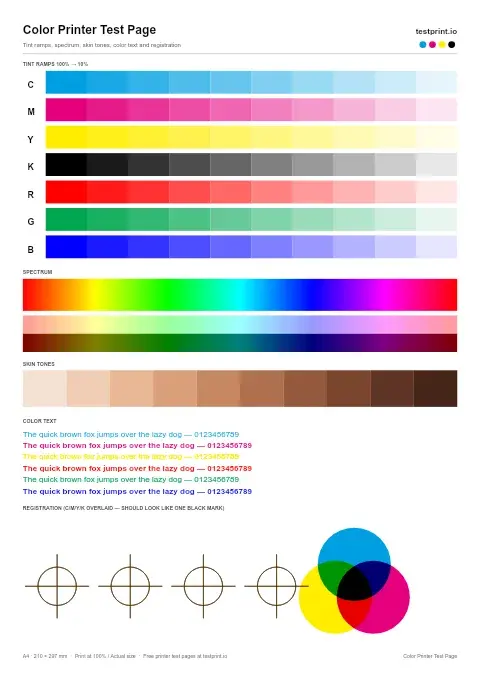
Color Printer Test Page
This printer color test page checks color blocks for faded colors, wrong tones, contamination, or poor saturation. Best for finding color problems before printing photos, graphics, or important documents.
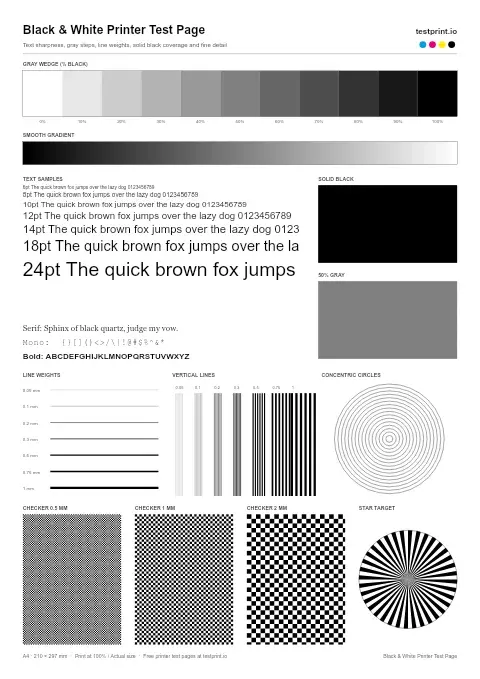
Black and White Test Page
Use this printer test page black-and-white pattern to check black text sharpness/quality, gray areas, streaks, horizontal banding, and weak toner or ink coverage. Best for standard office documents, black-only printers, and basic print-quality checks.
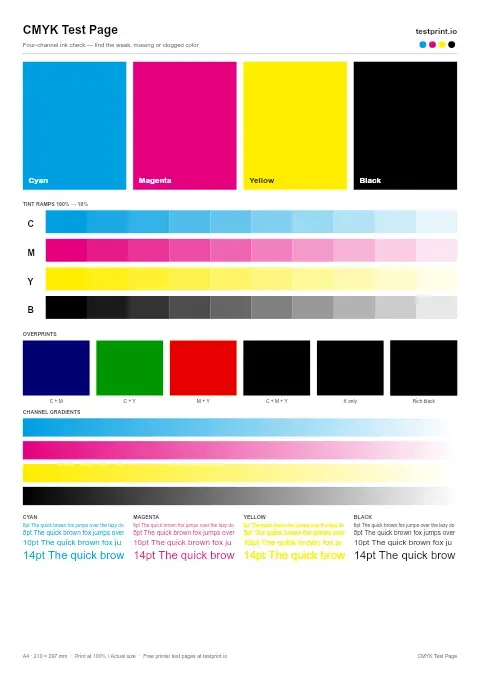
CMYK Test Page
Print separate cyan, magenta, yellow, and black blocks to find the exact color that is weak, missing, or clogged. Best for cartridge problems, blocked nozzles, and targeted ink troubleshooting.
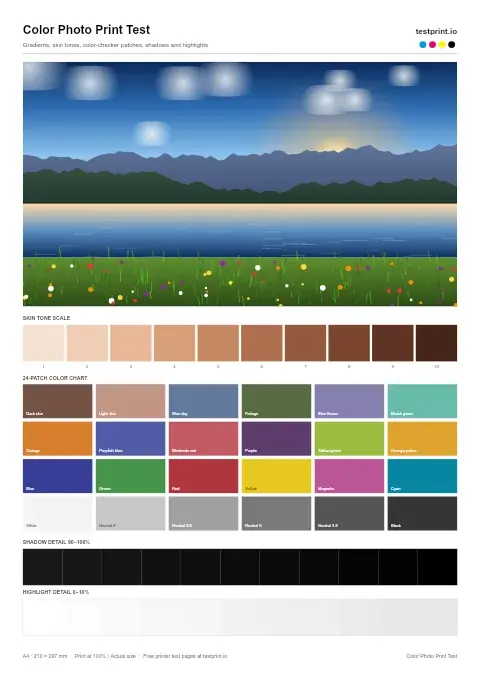
Color Photo Print Test
This detailed photo print tests skin tones, gradients, shadows, and smooth color transitions.
What Is a Canon Printer Test Page?
A printer test page is a document containing patterns that make differences in output easier to notice. Depending on its design, it can include color blocks, fine lines, grayscale areas, and text at different sizes.
Printing the same document before and after a change provides a consistent comparison.
A general PDF does not identify every blocked nozzle, measure ink levels, or automatically calibrate the printer. Canon's nozzle-check pattern is the appropriate starting point for checking inkjet nozzle output.
Test PDF vs. Canon Nozzle Check
| Test | Main use |
|---|---|
| Downloadable color PDF | Compare visible color coverage, gradients, and text |
| Black-and-white test | Examine black text and grayscale |
| Built-in inkjet nozzle check | Inspect the model's diagnostic patterns for missing output |
| Windows test page | Check printing through Windows |
| Laser configuration or status report | Review the information available on that model |
| Photo-sized test image | Compare output on supported compact photo-printer media |
A downloaded file tests the normal printing workflow. An internal report can help you investigate printer-side output separately from the computer's application and connection.
When Should You Print a Canon Test Page?
Print a test:
- When documents show pale areas, streaks, or missing colors.
- After installing replacement ink or toner.
- After refilling an ink tank.
- Before a large print job when output quality is uncertain.
- After changing paper, driver settings, or quality options.
- After supported cleaning, alignment, or calibration.
Keep the first sheet for comparison. Change one setting or perform one maintenance step at a time.
A test print does not override an ink warning or establish that a sensor is faulty. Check any displayed error using the model's support instructions.
How to Print the Canon Test Page PDF
Step 1: Open the File
Use the print or download option on the page. Open the PDF in a browser or PDF reader.
Step 2: Select Your Canon Printer
Press Ctrl + P on Windows or Command + P on Mac. Choose the correct printer rather than a PDF-saving destination.
If it is missing, check the power, the connection, and the installed printer setup.
Step 3: Match the Settings to the Paper
For an everyday baseline test, use supported plain paper and select the corresponding paper setting. Start with normal quality.
Enable color when testing a color printer. Use a black-and-white test for a monochrome model.
Do not select plain-paper settings for a printer or workflow that requires dedicated photo media.
Step 4: Review Scaling
Use actual size or 100% scaling for dimension-sensitive patterns. If the document exceeds the printable area, use a suitable layout or scaling option to avoid clipping.
Step 5: Print and Compare
Print one copy. Inspect it under neutral lighting once the ink has dried, where applicable. Record the paper and settings so the next test is comparable.
How to Print a Canon Nozzle Check Without a Computer
The procedure depends on the model. A screen-based menu and a button-only printer do not necessarily use the same sequence.
Example: PIXMA G6000 Series
Canon's manual instructs users to:
- Turn on the printer.
- Load A4 or Letter plain paper in the cassette.
- Press Setup.
- Select Maintenance and press OK.
- Select Nozzle check and press OK.
- Wait until printing finishes, then inspect the pattern.
Canon also notes that low ink can prevent the pattern from printing correctly.
Source: Canon G6000 nozzle-check instructions.
Example: PIXMA MG3600 Series
Canon specifies:
- Turn on the printer.
- Load A4 or Letter plain paper in the front tray.
- Open the output tray and supports.
- Hold Stop until the Alarm lamp flashes once.
- Release the button immediately and wait for the pattern.
Do not replace this instruction with an assumed five-second hold. Different flash counts can trigger different maintenance functions.
Source: Canon MG3600 nozzle-check instructions.
Which Test Fits Your Canon Printer?
| Printer family | What to check |
|---|---|
| PIXMA | General output plus the model's inkjet nozzle pattern |
| G-series MegaTank | Ink levels, nozzle output, and supported maintenance |
| MAXIFY | Model-specific inkjet checks and document quality |
| PIXMA professional photo models | Nozzle output and the correct photo-paper workflow |
| imageCLASS | Toner-based output and supported internal reports |
| imageRUNNER | Model-specific reports, media, and maintenance |
| SELPHY CP and QX models | Supported photo media and dye-sublimation workflow |
SELPHY CP1500 and QX20 models use dye-sublimation technology. Inkjet nozzle cleaning does not apply to them, and they should not be treated as ordinary A4 document printers.
Sources: Canon SELPHY CP1500 and SELPHY QX20 specifications.
How to Read Your Canon Test Page
Color Blocks
Look for uneven density, pale sections, and missing colors. These are symptoms to investigate, not proof of a specific nozzle blockage or empty cartridge.
Gradients
Check for smooth transitions and unwanted stripes. A downloaded gradient does not map directly to a particular nozzle row.
Text and Fine Lines
Look for broken characters, doubling, blurred edges, and smearing. Compare paper and quality settings before assuming a component has failed.
Black Output
Compare text with solid black areas. Not every PIXMA has the same cartridge arrangement, so do not assume every model uses separate pigment-black and photo-black supplies.
Built-In Nozzle Patterns
Compare the printed pattern with the manual's example. Investigate missing lines or white streaks using the relevant inkjet maintenance procedure.
Canon Printer Test Page Troubleshooting
Faded or Missing Colors
Check supplies and print settings, then run the nozzle check. If the pattern indicates a problem, follow the supported cleaning procedure.
Canon advises cleaning only when necessary because it consumes ink.
Source: Canon G6000 standard cleaning.
MegaTank Nozzle Check Shows Gaps
Check actual ink levels instead of assuming a large reservoir cannot run low. Canon's G6000 guidance explicitly notes that low ink can affect the diagnostic pattern.
Follow the model's cleaning sequence. Do not use arbitrary waiting periods for every MegaTank printer.
The Nozzle Check Prints, but Documents Do Not
A printer-generated pattern does not test the entire computer-to-printer path.
Check the selected printer, connection, queue, driver, and application. Try another file or PDF viewer before reinstalling software.
If the downloaded test PDF prints, compare the failing document's settings. A downloaded PDF still uses the normal print system.
Horizontal Lines in Output
For an inkjet, inspect the nozzle pattern before deciding to clean. Also compare media and quality settings.
For a laser printer, follow toner-based troubleshooting rather than inkjet maintenance.
Standard Cleaning Does Not Help
Follow the escalation steps in the model's manual. Deep Cleaning is not interchangeable with ordinary cleaning.
For the G6000 series, Canon states that Deep Cleaning uses more ink. If it does not resolve the problem, the guide specifies turning the printer off, leaving the power cord connected, and waiting 24 hours before another deep clean.
Source: Canon G6000 Deep Cleaning instructions.
This is a model-specific example. Follow your own printer's instructions and contact Canon support if the recommended steps do not resolve the issue.
How to Print a Canon Test Page From Windows 11
- Open Settings → Bluetooth & devices → Printers & scanners.
- Select your Canon printer.
- Open Printer properties.
- On the General tab, select Print Test Page.
Source: Microsoft printing troubleshooting.
This checks Windows printing; it does not replace Canon's nozzle check.
How to Print a Canon Test Page From a Mac
Open the PDF in Preview, choose File → Print, and select your Canon printer. Review media, paper size, color, and quality options.
For a model-specific diagnostic, use the printer controls or supported Canon software. Utility availability varies by model and installation.
Frequently Asked Questions
Is the Canon test page PDF free?
The supplied page offers free download and printing without registration. Printing still uses your paper and ink or toner.
Can I print a nozzle check without a computer?
Yes, on supported models. The G6000 series uses a maintenance menu, while the MG3600 series uses a Stop button and lamp-flash sequence.
Does the PDF identify every blocked nozzle?
No. Use Canon's built-in nozzle pattern for targeted inkjet checks.
Does it work with imageCLASS printers?
A normal PDF can be printed through a compatible imageCLASS setup. Choose a monochrome or color test to match the model.
Can I use an A4 PDF with every SELPHY printer?
No. Check supported formats, media, and software. A photo-sized image may suit the model's workflow better.
Should I clean cartridge contacts if a color is missing?
Do not make contact cleaning a universal first step. Follow the exact cartridge and maintenance instructions for your model.
Can the test page prove an ink sensor is faulty?
No. A visual test alone cannot establish the cause of an ink warning.
Does printing the PDF align or calibrate the printer?
No. Those are separate model-supported procedures.
Check Your Canon Printer's Output
Print one test using suitable media and settings. If defects appear, compare them with the appropriate built-in diagnostic, follow the model's maintenance guidance, and repeat the print to evaluate the result.