An HP printer test page helps you check whether your printer produces clear text, consistent colors, and even ink or toner coverage. Printing one sheet is a useful first step when documents look faded, streaky, blurry, or incomplete.
Use the downloadable PDF for a visual print-quality check, or print a built-in HP report for model-specific diagnostics. Comparing both can help narrow down whether you should check the printer, connection, settings, or application.
Choose a color test for a color-capable printer and a black-and-white test for a monochrome model.
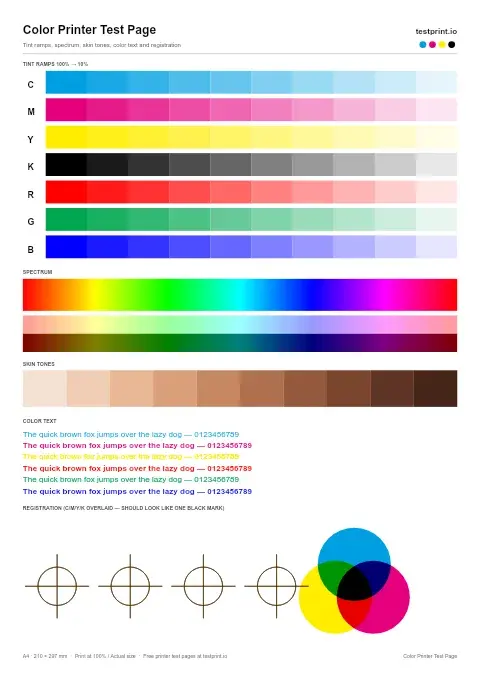
Color Printer Test Page
This printer color test page checks color blocks for faded colors, wrong tones, contamination, or poor saturation. Best for finding color problems before printing photos, graphics, or important documents.
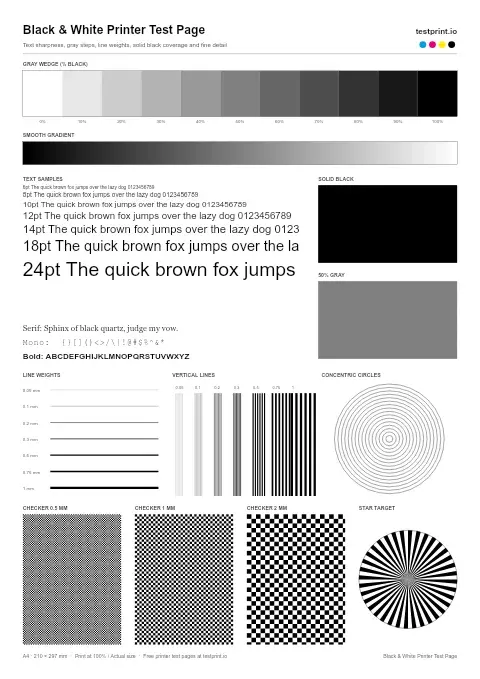
Black and White Test Page
Use this printer test page black-and-white pattern to check black text sharpness/quality, gray areas, streaks, horizontal banding, and weak toner or ink coverage. Best for standard office documents, black-only printers, and basic print-quality checks.
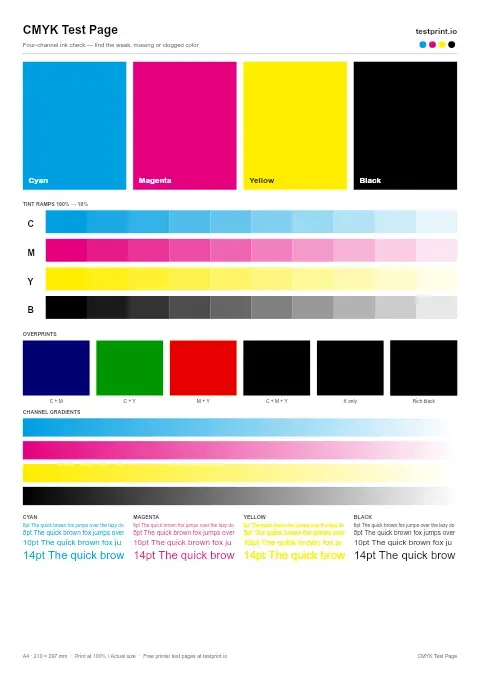
CMYK Test Page
Print separate cyan, magenta, yellow, and black blocks to find the exact color that is weak, missing, or clogged. Best for cartridge problems, blocked nozzles, and targeted ink troubleshooting.
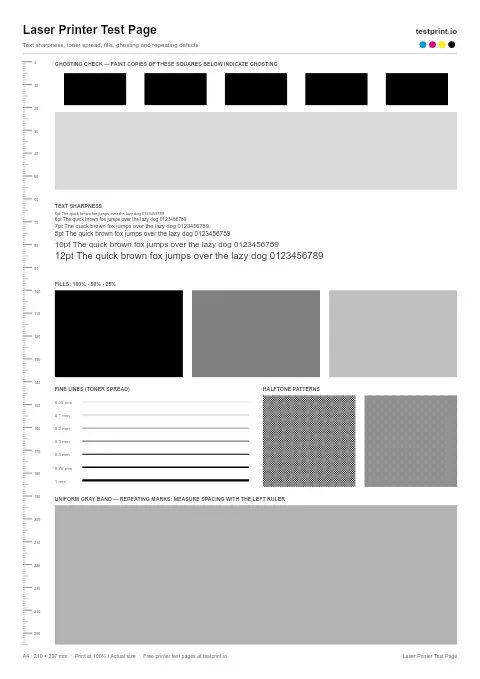
Laser Printer Test Page
Use this when laser prints look soft, smudged, or uneven to check text sharpness and toner spread.
What Is an HP Printer Test Page?
An HP printer test page is a document or internal report used to assess printing performance. Depending on its design, it can include text samples, color blocks, gradients, fine lines, and grayscale patterns.
These elements help you compare:
- Black text sharpness.
- Color coverage and missing colors.
- Smoothness of gradients.
- Visible streaks, banding, and uneven density.
- Fine-line detail and overall consistency.
A general PDF shows the output produced through your normal printing workflow. It cannot identify every failed nozzle, measure ink levels, or automatically calibrate the printer.
For specific maintenance checks, use the diagnostic report provided for your HP model.
Downloadable Test Page vs. Built-In HP Report
| Option | What it helps check | How it is printed |
|---|---|---|
| Downloadable PDF | Visible text, color, and gradient quality | Through a browser or PDF viewer |
| Windows test page | Printing from Windows and basic output | Through Printer properties |
| HP print-quality report | Model-specific diagnostic patterns | Through supported printer controls or software |
| Printer information or configuration report | Printer details, settings, or connectivity information | Through the model's report function |
Not every internal report contains the same information. A printer information page is not necessarily a print-quality diagnostic page.
For example, HP identifies the information page on DeskJet 2700, 4100, and 4800 models as a source of mobile-printing and wireless connection information.
Source: HP DeskJet self-test pages.
When Should You Print an HP Test Page?
Print a test page when:
- You notice faded text, streaks, missing colors, or blurred edges.
- You have installed replacement ink or toner and want to check the result.
- You have changed paper or print settings.
- You have completed a cleaning or alignment procedure.
- Printing problems appear after a software, driver, or connection change.
- You want to compare print quality before and after troubleshooting.
Keep the first sheet for comparison. Change one setting or perform one maintenance step at a time, then print again.
How to Print the Downloadable HP Test Page
Step 1: Open or Download the PDF
Use the page's print or download option. Open the saved PDF in a browser or PDF reader.
Step 2: Select Your HP Printer
Press Ctrl + P on Windows or Command + P on Mac. Choose the correct physical printer rather than a PDF-saving destination.
If the printer is missing, check its power and USB or network connection.
Step 3: Check Paper and Quality Settings
Match the selected paper size to the document and paper loaded in the tray.
For a useful comparison:
- Use clean paper suitable for the printer.
- Select the correct paper type.
- Use a normal quality setting.
- Enable color for a color test.
- Turn off grayscale if you want to evaluate colors.
Use 100% scale or actual size when checking dimension-sensitive patterns. If the document exceeds the printer's printable area, choose a suitable page format or allow scaling to prevent clipping.
Step 4: Print and Examine the Sheet
Print one copy and inspect it under neutral lighting. Let ink dry before handling the printed area.
Record the paper and settings used so the next test is comparable.
How to Print an HP Test Page From Windows 11
- Open Settings.
- Select Bluetooth & devices → Printers & scanners.
- Select your HP printer.
- Open Printer properties.
- On the General tab, select Print Test Page.
Microsoft recommends this test to check communication between Windows and the printer.
Source: Microsoft printing troubleshooting.
How to Print an HP Test Page From a Mac
Open the test PDF in Preview or another PDF reader, choose File → Print, and select your HP printer.
Review the paper, color, and quality settings before printing. Available options depend on the model and installed software.
For an internal diagnostic report, use the printer's supported controls or HP software. Do not assume every Mac has the same printer-utility menu.
How to Print a Built-In HP Diagnostic Page
Report names and button combinations vary by model. Look for options such as Reports, Tools, Maintenance, or Print Quality Report, where supported.
Printers without a touchscreen may use a button combination. Check the exact model's instructions rather than holding the Information button for an assumed duration.
| HP printer family | Appropriate starting point |
|---|---|
| DeskJet | Model-specific report instructions and inkjet maintenance |
| ENVY | Supported quality reports and alignment tools |
| OfficeJet / OfficeJet Pro | Model-specific print-quality diagnostics |
| LaserJet | Reports and laser-print quality procedures |
| Color LaserJet | Color diagnostics and supported calibration procedures |
HP+ is a program designation rather than one uniform printer mechanism. Use the underlying printer model to find instructions.
How to Read Your HP Printer Test Page
Solid Color Blocks
Look for consistent coverage. Pale areas, white gaps, or a missing color indicate a print-quality issue, but they do not prove that a cartridge is empty.
On inkjets, use the model's diagnostic report to investigate ink delivery or printhead performance.
Gradients and Grayscale
Gradients should change gradually. Visible steps or stripes can reflect printing defects or the chosen quality settings.
Compare results using the same paper and settings before concluding.
Text and Fine Lines
Check for sharp edges, broken characters, doubled lines, and smearing. Poor results can involve paper, settings, alignment, or printer components.
Very small text is also limited by the source file and printer resolution.
Black Areas
Compare black text and solid black regions for evenness. A color cast alone does not establish whether the dedicated black cartridge was used.
Repeating Marks
Repeated spots or lines deserve model-specific investigation. Laser-printer issues can involve toner or other print-system components; inkjet nozzle-cleaning advice does not apply to LaserJet printers.
HP Printer Test Page Troubleshooting
The Printer Produces a Blank Page
Check that the file contains visible content, the correct printer is selected, and new cartridges have been installed according to the model's instructions.
Where applicable, confirm that required protective tape or shipping seals were removed. Compare the PDF with an internal report.
For an inkjet, follow its diagnostic and cleaning guidance. For a laser printer, follow toner-related troubleshooting.
Source: HP blank-page troubleshooting.
The Test Page Shows Streaks or Missing Colors
For HP inkjets, print a quality report and use the supported cleaning procedure if the diagnostic patterns indicate a problem. Follow the model's instructions for further cleaning and alignment.
Avoid repeated cleaning without reviewing the results; it consumes ink.
Sources: HP inkjet alignment guidance and HP print-quality diagnostics.
A LaserJet Test Page Has Spots or Repeating Lines
Check the paper and print settings, then follow the model's laser-print troubleshooting. Some LaserJet models support a cleaning page.
Do not run inkjet printhead-cleaning instructions on a laser printer.
Source: HP LaserJet print-quality troubleshooting.
The Internal Test Page Prints, but Documents Do Not
An internal report checks printing inside the device; it does not test the complete computer-to-printer path.
Check the selected printer, connection, print queue, driver, and application. Try another file or app.
A downloaded PDF still uses the normal printing system. It does not automatically bypass the Windows print queue.
The Colors Look Wrong
Verify that color printing is enabled and that the paper type matches the loaded paper. Compare another file with the internal quality report.
Do not assume unusual colors always mean a blocked nozzle or an unprimed cartridge.
Use the appropriate maintenance guidance. Clean cartridge contacts only when the model's instructions specifically call for it.
Frequently Asked Questions
Is the downloadable HP printer test page free?
The supplied page offers free printing and PDF download without registration. You still use your own paper, ink, or toner.
Can I use it with DeskJet, ENVY, OfficeJet, and LaserJet printers?
A standard PDF can be printed through a compatible setup. Choose a color or monochrome test to match the printer's capabilities.
Can a black-and-white LaserJet print the color test?
It may reproduce the colors as grayscale, but that cannot test color output. Use a monochrome test instead.
Can I print a test page without a computer?
Many HP models can print internal reports using their controls. The exact procedure depends on the model.
Why does my HP printer print a test page but not documents?
If an internal report prints, check the computer-side connection, queue, driver, and application. If a downloaded test PDF prints, compare the failing document and app settings.
Does a test page clean or align the printer?
No. A general test page shows output quality. Cleaning, alignment, and calibration are separate procedures.
Does it work with HP Instant Ink cartridges?
The PDF does not require a special cartridge type. The printer and cartridges must be active and usable under the applicable service conditions.
How often should I print a test page?
Print when you notice a problem or need to verify a change. Avoid unnecessary full-color tests and cleaning cycles.
Can a test page prove that colors are accurate?
It can reveal visible inconsistencies, but precise color assessment requires a controlled workflow. A general PDF is not a substitute for professional color calibration.
Check Your HP Printer's Output
Print one test sheet using settings appropriate for your printer and paper. If defects appear, compare it with the model's internal diagnostic report, follow the relevant maintenance steps, and print again to check whether the result improves.