An Epson printer test page helps you examine color coverage, black text, gradients, and visible printing defects. Use it when output looks faded, has missing colors, or shows unwanted lines.
Download the test PDF for a general quality check, then use your printer's built-in nozzle check when you need to investigate ink delivery. These tests serve different purposes and work best together.
The downloadable page checks the result of normal printing. Epson's nozzle pattern provides a more targeted check of nozzle performance.
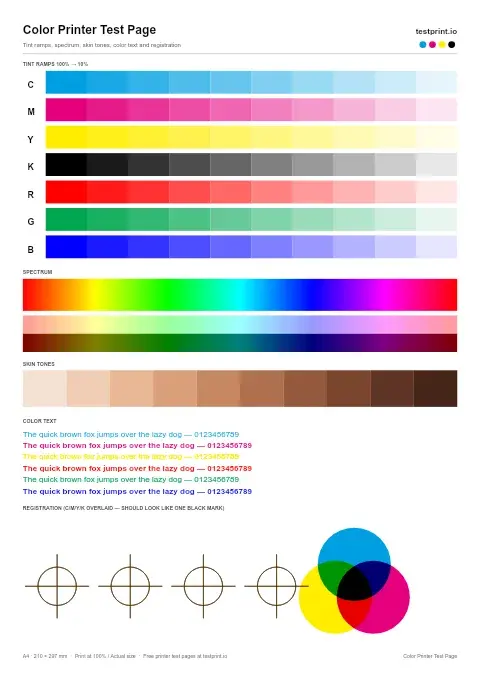
Color Printer Test Page
This printer color test page checks color blocks for faded colors, wrong tones, contamination, or poor saturation. Best for finding color problems before printing photos, graphics, or important documents.
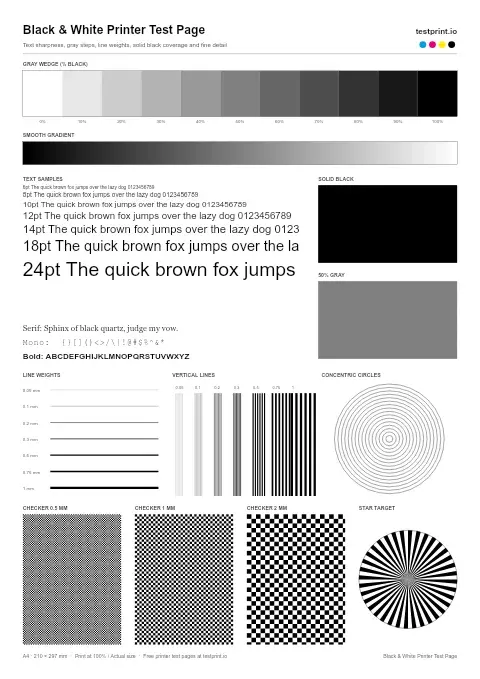
Black and White Test Page
Use this printer test page black-and-white pattern to check black text sharpness/quality, gray areas, streaks, horizontal banding, and weak toner or ink coverage. Best for standard office documents, black-only printers, and basic print-quality checks.
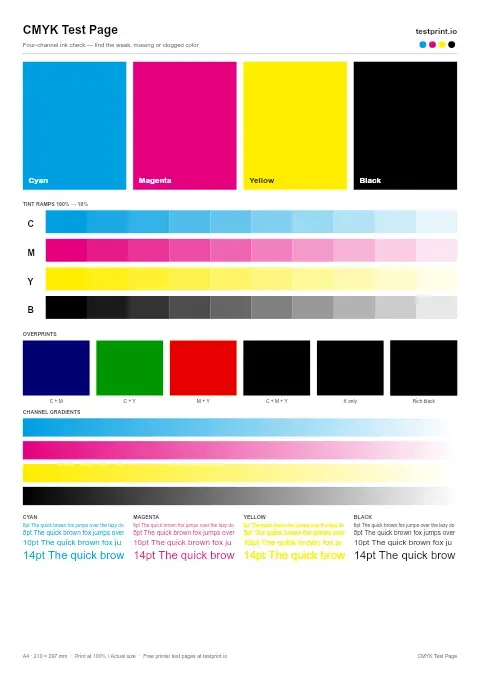
CMYK Test Page
Print separate cyan, magenta, yellow, and black blocks to find the exact color that is weak, missing, or clogged. Best for cartridge problems, blocked nozzles, and targeted ink troubleshooting.
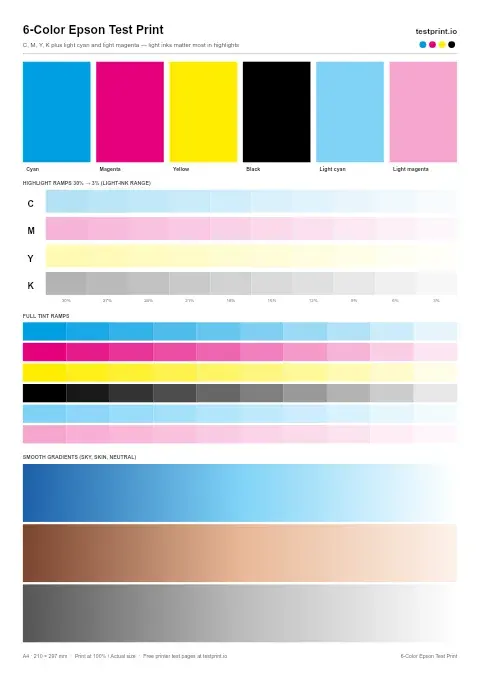
6-Color Epson Test Print
Use this Epson printer test page to check CMYK, light cyan, and light magenta on six-color Epson photo printers.
What Is an Epson Printer Test Page?
A printer test page is a document containing patterns that make print-quality problems easier to notice. It may include color blocks, grayscale areas, gradients, fine lines, and text samples.
Printing the same page before and after a setting change provides a consistent comparison.
A general PDF does not check every nozzle individually or prove that a specific nozzle row is blocked. For that, use Epson's model-specific nozzle-check procedure.
Test PDF vs. Epson Nozzle Check
| Test | Best use | What it does not establish |
|---|---|---|
| Downloadable color PDF | Comparing visible color coverage and gradients | Exact nozzle condition or calibrated color accuracy |
| Black-and-white test page | Checking text, grayscale, and black coverage | Performance of every color channel |
| Built-in nozzle check | Finding gaps or faint sections in diagnostic patterns | Overall quality of every document or photo |
| Windows test page | Checking printing through Windows | A complete model-specific nozzle diagnosis |
A downloadable file goes through the normal application, driver, and connection workflow. A nozzle check generated through supported printer controls can help separate printer-side problems from computer-side ones.
When Should You Print an Epson Test Page?
A test print is useful:
- When text or images become faded or streaky.
- After replacing cartridges or refilling tanks.
- After changing paper or print-quality settings.
- When checking an unused printer.
- After an alignment or cleaning procedure.
- When comparing a troublesome file with a known test document.
Keep the first print and change one thing at a time. This makes it easier to identify whether a maintenance step or setting improved the result.
How to Print the Epson Test Page PDF
Step 1: Open or Download the File
Use the print or PDF download option on this page. Open the file in a browser or PDF reader.
Step 2: Select Your Epson Printer
Press Ctrl + P on Windows or Command + P on Mac. Choose the intended Epson printer rather than a PDF-saving destination.
If it is unavailable, check the power, the connection, and whether the correct printer has been added to your device.
Step 3: Check Print Settings
Match the paper size to the file and loaded paper. Select the correct paper type and a normal quality setting.
For a color test, enable color printing and disable grayscale or black-only mode.
Use actual size or 100% scaling for patterns that depend on dimensions. If the page is clipped, use a compatible layout or suitable scaling.
Step 4: Print One Sheet
Inspect the result under neutral lighting after the ink has dried. Note the settings used so a follow-up print is comparable.
How to Run an Epson Nozzle Check
The exact method depends on the model. Some printers provide a maintenance menu; others use buttons or an installed Epson utility.
Example: Epson EcoTank ET-2800
Epson's ET-2800 instructions describe this procedure:
- Load plain paper and make sure the printer has no displayed errors.
- Press the Home button if necessary.
- Select Maintenance and press OK.
- Select Nozzle Check.
- Press the Start button.
- Examine the pattern for gaps or faint sections.
Source: Epson ET-2800 nozzle-check instructions.
Do not assume the same sequence applies to every EcoTank, Expression, WorkForce, or L-series printer. Find the full model number and follow its manual.
Epson Printer Families and Test-Page Use
| Printer family | What to consider |
|---|---|
| EcoTank | Use the model's tank-level, nozzle-check, and cleaning guidance |
| Expression | Match the paper and quality settings to the document or photo |
| WorkForce / WorkForce Pro | Check text and color output alongside model-specific maintenance |
| L-series | Use the exact model's control-panel or utility instructions |
| SureColor | Match the test file to the printer's supported media and workflow |
| Stylus | Consult the model's manual for utilities and maintenance procedures |
A standard PDF is useful only where your printer setup supports the file and selected media. Some models are monochrome; others support different ink sets or specialist printing workflows.
How to Read an Epson Test Page
Solid Color Blocks
Look for uneven density, white gaps, or missing colors. These show a problem worth investigating, but do not identify the cause by themselves.
Run the built-in nozzle check before deciding that cleaning is necessary.
Color Gradients
Check whether transitions appear smooth. Stripes or abrupt changes may involve nozzle performance, settings, media, or the source file.
A stripe in a downloaded gradient does not map directly to a particular nozzle.
Black Text and Fine Lines
Look for broken letters, fuzzy edges, doubling, and smears. Compare the paper type and quality settings before changing hardware.
Grayscale and Blended Colors
Use these areas to notice unexpected color casts or uneven transitions. A visual test cannot prove precise color accuracy or measure how much ink each channel delivers.
Nozzle-Check Patterns
Inspect the diagnostic lines against the example in your manual. Missing or faint sections can indicate that the supported cleaning procedure is needed.
Epson Printer Test Page Troubleshooting
White or Dark Horizontal Lines
Banding can involve clogged nozzles, paper settings, alignment, or print-quality options. Epson recommends a nozzle check, then cleaning if needed, along with checking media and settings.
Do not assume every horizontal line proves a blockage.
Source: Epson guidance for white or dark lines.
A Blank Test Page
First verify that the file contains visible content and the correct printer is selected. Compare it with a built-in nozzle check.
Check ink supplies and installation instructions. On cartridge printers, remove only the tape or packaging specified by Epson. Do not peel away every label or seal: some must remain in place.
Source: Epson cartridge installation example.
A blank page alone is not a reason to immediately run Power Cleaning.
Faded or Washed-Out Colors
Check whether Draft or Economy mode is selected, and confirm the paper setting. Print a nozzle check to investigate missing ink output.
If that pattern is complete, compare another file and review its print settings before running unnecessary cleaning.
Blurry Text or Doubled Lines
Check paper selection and follow the model's alignment guidance where appropriate. For applicable models, Epson also recommends reviewing high-speed or bidirectional printing settings when banding persists.
The Nozzle Check Prints, but Documents Do Not
A printer-generated check does not test the full computer-to-printer path.
Check the selected printer, connection, queue, driver, and application. Try another document or PDF viewer before deciding whether to reinstall software.
If a downloaded PDF prints correctly, compare the failing file and application's settings.
Standard Cleaning vs. Power Cleaning
Run cleaning according to the model's diagnostic instructions, not simply because a general test page looks imperfect.
For the ET-2800, Epson says that if standard cleaning has not improved the result after up to three attempts, turn the printer off and wait at least 12 hours before checking again and following the next steps.
That is a model-specific example, not a universal rule for every Epson printer.
Power Cleaning has additional requirements. The ET-2800 instructions require every tank to be at least one-third full and a minimum 12-hour interval before another Power Cleaning. Epson warns that running it with low ink can damage the printer.
Source: Epson ET-2800 Power Cleaning instructions.
Follow your manual's ink-level requirements, waiting periods, and maintenance limits. If problems persist, use Epson support rather than attempting an unsupported flush.
How to Print an Epson Test Page From Windows 11
- Open Settings → Bluetooth & devices → Printers & scanners.
- Select your Epson printer.
- Open Printer properties.
- On the General tab, select Print Test Page.
This checks printing through Windows; it is separate from Epson's nozzle check.
Source: Microsoft printing troubleshooting.
Frequently Asked Questions
Is the Epson test page free?
The supplied page offers a free PDF download and printing without registration. Printing still uses your paper and ink.
How do I print an Epson color test page?
Open the color PDF, select your Epson printer, enable color, confirm the paper settings, and print one copy.
Does the PDF check every nozzle?
No. It shows overall output quality. Use the built-in nozzle check to examine diagnostic line patterns.
Why are there lines across my Epson printout?
Possible causes include nozzle problems, unsuitable paper settings, alignment, and quality options. Start with a nozzle check rather than assuming one cause.
Can I use the page with Epson L-series printers?
Yes, where your L-series setup supports normal PDF printing. Use the exact model's instructions for nozzle checks and maintenance.
Can I print a nozzle check without a computer?
Many models support a control-panel or button-based check. The procedure depends on the printer.
Should I run Power Cleaning after every tank refill?
No. Check the nozzle pattern and follow the model's guidance. A refill alone does not establish a need for Power Cleaning.
Does printing a test page clean the printhead?
A general test print is not a cleaning procedure. Run the supported maintenance function when the diagnostic results call for it.
What if cleaning does not improve the result?
Observe the waiting periods and limits in your manual. Contact Epson support if the recommended procedures do not resolve the problem.
Check Your Epson Printer's Output
Start with one test sheet using appropriate paper and settings. If defects appear, print a nozzle check, follow the model's recommended maintenance, and compare the next result with your first print.